
Departments and Locations are Pro Plan features. You must have a Pro subscription in order to use them.
Departments and locations are two methods of grouping employees only available on the Pro plan.
Departments group employees by work type, for example, demolition crews, drywallers, or service technicians.
Locations group employees from different offices or service areas.
Create a department
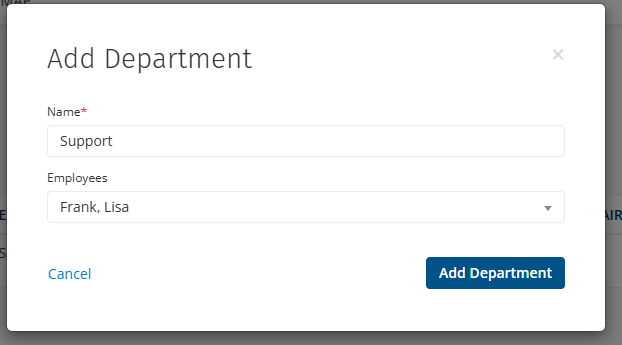
To create a department:
- Go to Admin > Departments.
- Click + Add Department.
- Enter a Name for the department.
- Select Employees to include them in this department.
- Click Add Department.
Create a location
To create a department:
- Go to Admin > Locations.
- Click + Add Location.
- Enter a Name for the location.
- Select Employees to include them in this location.
- Click Add Location.
Use departments and locations
Once created, you can use departments and locations to manage groups of employees for different purposes.
On the Timesheets page, filter by department and location to show only the employees in those groups on the screen. You can create a timesheet entry for an entire department or location at once if needed. Learn more in Reviewing and Editing Timesheets.
On the Schedules page, filter by department and location to show only the employees in those groups on the screen. You can also schedule all employees in a department or location at once. Learn more in Scheduling Employees: Web and Mobile
All reports in ClockShark can be filtered to only include the departments and locations you select. Learn more in Viewing and Exporting Reports.
You can also give employees manager permissions for departments or locations to make that employee the manager, supervisor or foreman of that team. Learn more in Using Roles and Manager Permissions.
Turn off departments and locations
If you do not need to use departments and locations, go to Admin > Company > Groups. Deselect the check boxes to disable departments, locations, or both.