
Share schedules and job details with your team using ClockShark's scheduling feature. This reduces administrative time, keeps your office and field teams synchronized with the latest information, and improves overall job management. This feature is available on both the web portal and the mobile app.
Schedule employees in the web portal
Schedule employees one at a time
- Log in to the ClockShark Web Portal.
- Click SCHEDULES.
- Drag and drop a job from the left side jobs list into the employee’s date block in the schedules table (for an all-day shift).
Note: When you drag and drop a job, it will initially be scheduled as an all-day shift (No start or end time)due to the default settings.
To change the start and end times in a scheduled job:
- Click on the scheduled shift, and click the pencil icon.
- On the Edit Shift page, click All Day to choose the shift start time.
- Update the Shift date, start/end time and other details as needed.
- Click Save.
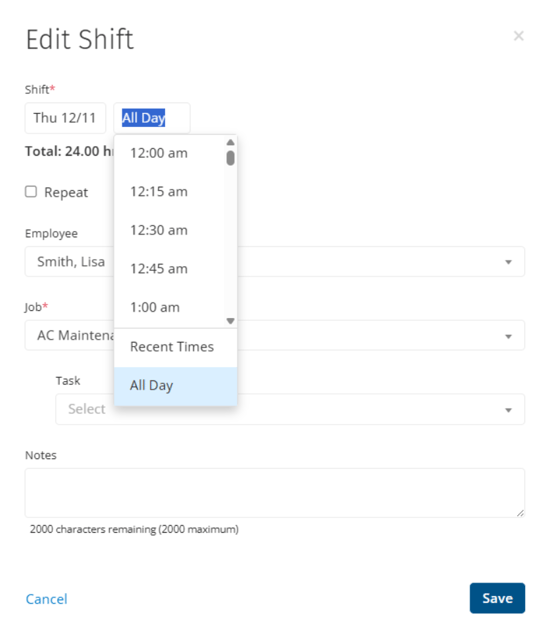
To reassign a scheduled shift to a different employee, you can follow one of the following processes:
- Drag and drop the shift onto the new employee's row.
- Click the shift and click the pencil icon
 , choose a different employee from the Employee dropdown list.
Schedule multiple employees at once
- Log in to the ClockShark Web Portal.
- Click SCHEDULES.
- Click Add Shift in the top right corner.
- Under Shift, select start/end dates and times.
- Select Employees, Job from the dropdown options.
- Select or add a Task, and enter Notes if you need.
- Click Publish.
You can also view an employee's total scheduled hours under EMPLOYEES, and use the Day/Week/2Weeks time period selector in the top-left corner for reference.
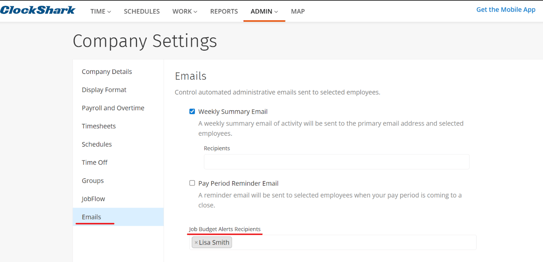
Update a schedule
Published shifts can be updated at any time. Saved changes to a shift's time, date, assigned employee, job, or notes will automatically sync to the employee's mobile app accordingly.
To send the updated shift details to employees:
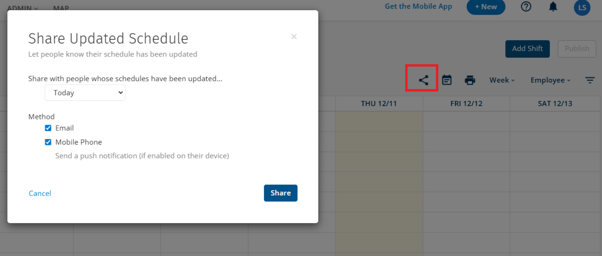
- Click the Share icon
 in the top right corner.
 - Click Today to choose the date range that contains the updated shifts you wish to share.
- Select the preferred Method to share the updated schedule. You can choose more than one option if you need.
- Click Share.
Once a scheduled shift is assigned to an employee, it appears instantly in their mobile app automatically. However you can also manually refresh the schedule if you need:
- Log in to the ClockShark Mobile App.
- Click Schedule.
- Pull the page down to refresh.
Subscribe to the schedule
Learn more in How to Connect Your ClockShark Schedule to Your Personal Calendar
Print a Schedule
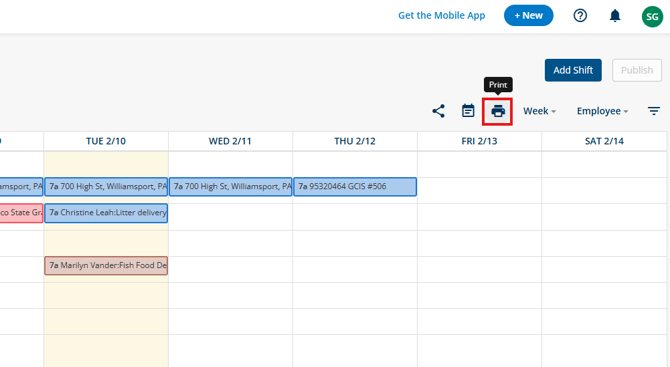
If you need a physical copy of the schedule, use the printer icon to open your printer settings for the selected date range. You can also use this button to save the schedule as a PDF.
Changing the Schedule View
Sort the schedule by job or employee, toggle between the two to ensure that all jobs have assigned employees. Filter to only specific jobs or employees as needed.
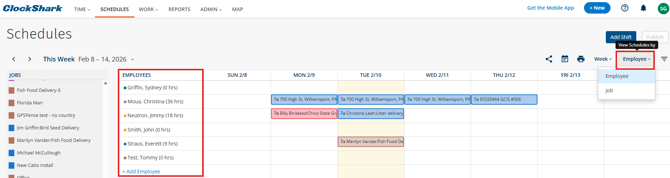
Note: The published schedules in the web portal can be deleted or converted to the draft if needed. Learn more in Draft Schedules.
Scheduling employees can be easily done in the mobile app as well.
Schedule employees in the mobile app
- Log in to the ClockShark Mobile App.
- Click Schedule.
- Click the add icon +.
- Select EMPLOYEE, JOB and DATE, along with START and END time.
- Select or add a Task, and enter Notes detail if you need.
- Click Save.