
If you use a personal calendar app, such as Google, Yahoo, Apple or Outlook, you can integrate your calendar with ClockShark to automatically include your ClockShark schedule in your calendar app.
The date range for your ClockShark schedule only shows scheduled shifts one week back to three months forward on your personal calendar. If you use the Time Off feature, both pending and approved time off requests will appear on your personal calendar.
Generate calendar subscription
First, you need to create a calendar subscription that your personal calendar can subscribe to.
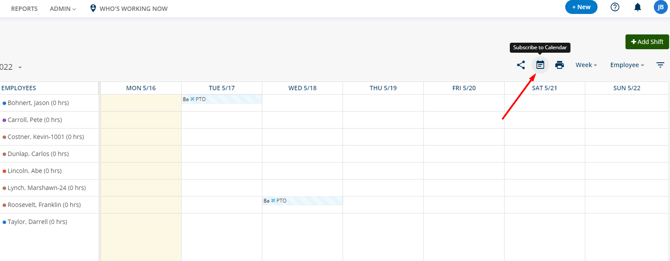
To generate a calendar subscription:
- Go to Schedules or Time > View.
- Click the calendar icon next to the print icon in the top right.
- Under Subscribe to schedules from: select the employees whose schedules you want to include on your personal calendar.
- Click Generate URL.
- Click Copy Link.
You’ll need this link to add to your personal calendar.
Google Calendar
Once you have the calendar subscription link, you can add this subscription in Google Calendar.
In Google Calendar, next to Other Calendars, click the + icon and click From URL. Paste the calendar URL and click Add Calendar.
You can edit and rename the calendar for easy identification.
Yahoo Calendar
Once you have the calendar subscription link, you can add this subscription in Yahoo Calendar.
In Yahoo Calendar, click Follow Other Calendars. Enter the calendar name, paste the calendar URL next to iCal Address and click Continue.
Outlook 365
Once you have the calendar subscription link, you can add this subscription in Outlook Calendar.
In Outlook Calendar, click Add Calendar > From Internet. Paste the calendar URL and click OK.
Apple Calendar for iPhones
Once you have the calendar subscription link, you can add this subscription in Outlook Calendar.
On your iPhone, go to Settings > Mail > Accounts > Add Account > Other > Add Subscribed Calendar. Paste the calendar URL in the server field and tap Save.