
Employees must select a job and task to clock into every shift. Create a job to share job details such as the job name, job address, and job descriptions to the field employee. Employees can also upload job comments and attachments.
Create a task to monitor specific types of work and associated labor costs, whether managed by the administrative team or field staff.
Create a job
There are 2 options to create a job:
- Go to Work > Jobs, click Add job in the top right corner.
- From any page, click +New in the top right corner, click Job.
From here, you can enter:
- Name: This is a mandatory field to complete.
- Number: Specify the job number manually.
- Stage: Click the dropdown icon to choose the job stage. Learn more in How to Set Up and Use Job Stages.
- Job Color: Specify a custom color for the job. It will appear on the schedule, timesheets, screens, and the mobile app.
- Customer: Click the dropdown icon to either associate the job with an existing customer or create a new customer. Learn more in How to Use ClockShark Customers.
- Address: Complete the job address details in this field.
- Description: Enter a detailed description for field employees. The employee can view these details once they click into the job from the ClockShark mobile app.
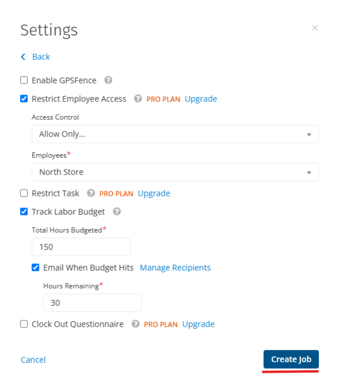
Click Additional Settings to view more options:
- Enable GPSFence: To establish a virtual fence around a job site. If an employee leaves or enters the site without clocking in or out, this will trigger a timesheet alert. In the Legacy app, this will generates a reminder for employees to clock in/out. Learn more in Using Geofence.
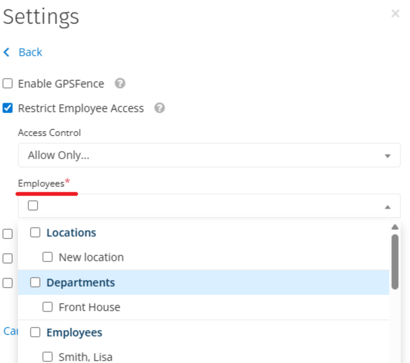
- Restrict Employee Access: To restrict which employees can view and clock into the job. You can restrict access for individual Employees, as well as Locations and Departments.
- Restrict Task: To restrict the tasks that are available for use within the created job.
- Track Labor Budget: You can add Total Hours Budgeted, select Email When Budget Hits and enter the number of Hours Remaining to receive an email alert when a job reaches that limit. This setting is useful for firm-fixed-price contracts to gauge the job's profit margin. Add or remove emails to receive those alerts by selecting Manage Recipients.
- Note: You can also edit the recipient under Admin > Company > Emails > Job Budget Alerts Recipients.
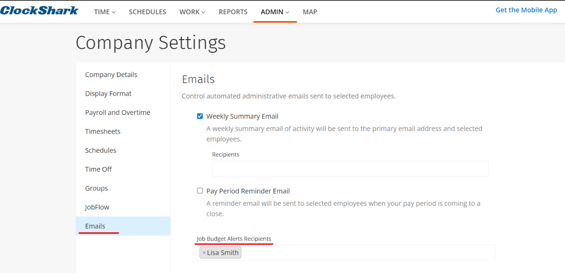
- Note: You can also edit the recipient under Admin > Company > Emails > Job Budget Alerts Recipients.
- Shift Wrap Up & Compliance: You can require employees to answer the customized setup questions. Learn more in How to Use Shift Wrap Up & Compliance Forms.
Click Create Job after you completed job settings.
Add job attachments
To add job attachments after you create a job:
- Go to Work > Jobs.
- Click the specific job line.
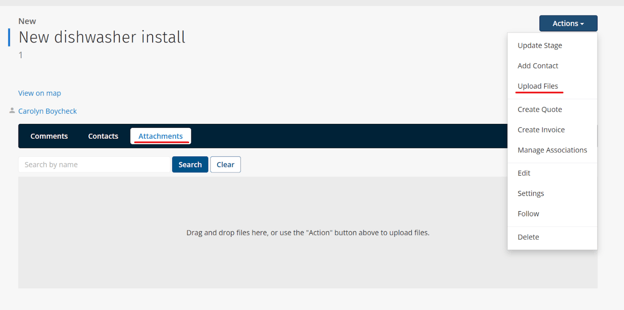
- Click Attachments to drag and drop files.
Alternatively, you can use Actions > Upload Files to add attachments. The supported file types include JPG, PDF, PNG, TXT, CSV and XLSX.
Create a Task
There are 2 options to create a task:
- Go to Work > Tasks, click Add Task in the top right corner.
- From any page, click +New in the top right corner, click Task.
From here, you can enter:
- Name: This is a mandatory field to complete.
- Task Code: Specify the task number manually.
- Access Control: To restrict which employees can view and clock into the task via their ClockShark mobile app.
- Overtime Exempt: When this option is selected, time recorded for this task will not be calculated as overtime, regardless of company settings.
- Out of Bounds Exempt: When this option is selected, it ensures that time used for this task will not trigger an out-of-bounds notification. This is useful for tasks such as travel, sales calls, or working from home.
Click Save after you completed task settings.