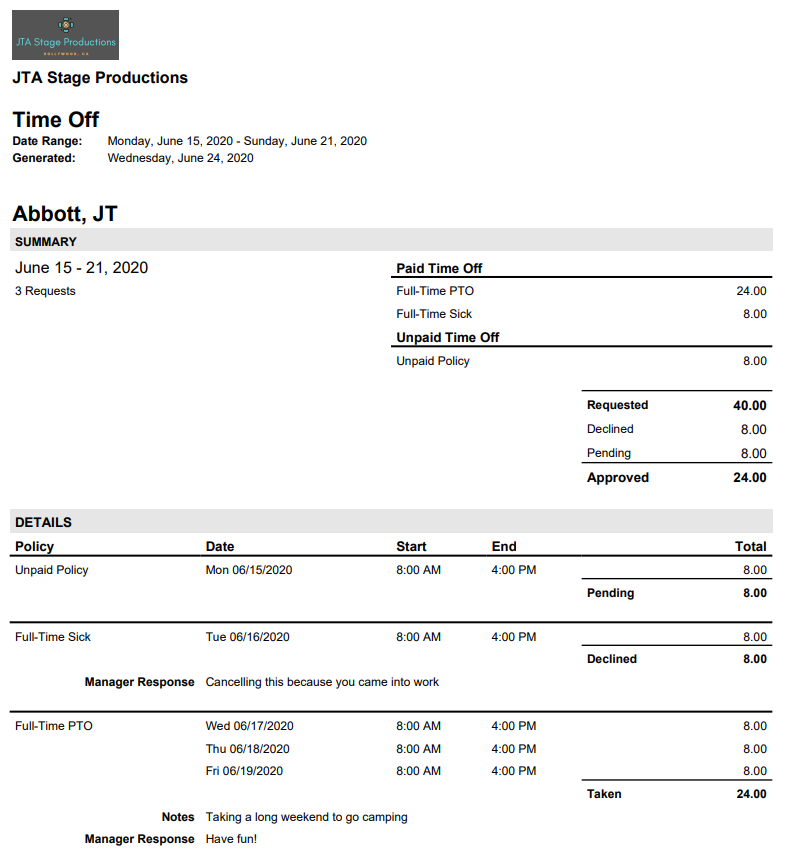
With the Time Off report you can view request details and policy totals grouped by employee.
Run the Time Off report
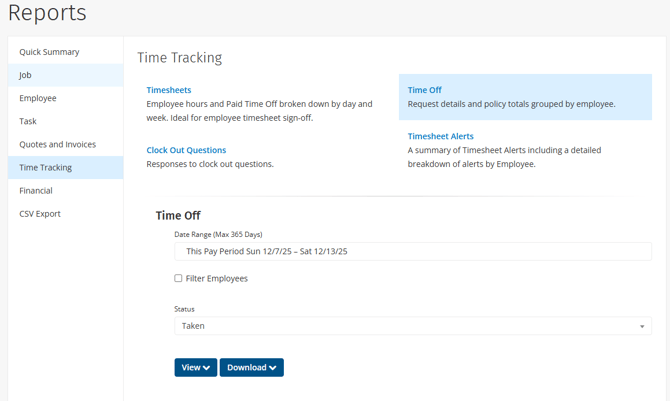
To run the Time Off report:
- Click Reports.
- Under Time Tracking, click Time Off.
- Select a Date Range.
- To only include specific employees in this report, select Filter Employees and select the employees. If this option is not selected, all employees will be included in this report.
- Under Status, select to filter for Pending, Approved, Taken, or Declined time off. Or, to include all statuses, select All.
- Selecting Approved will include both leave that has been approved and taken.
- You can either view the report as a PDF or download the report as either a PDF or CSV file:
- Click View > PDF Portrait / PDF Landscape to view the report results in your browser.
- Click Download > PDF Portrait / PDF Landscape / CSV to download the report file to your computer.
The Summary section at the top is an overview of any time off for the selected employee in the date range. On the left side, you can view the date range along with the total number of requests made by the employee. On the right side, you will see the total number of hours requested for each policy that the employee is in or any past policy they requested in the date range. Then you will see the total hours requested.
The Details section on the bottom lists each request made with the dates, start and end times, the total for each day, the total for the entire request, as well as any notes made by the admin or the employee.