If you use the desktop version of QuickBooks as your accounting package, set up the QuickBooks Desktop Integration so you can export time from ClockShark to QuickBooks.
System Requirements
Due to QuickBooks discontinuing services for versions from 2017 and earlier, we only support versions from 2018 and newer. However, if you calculate payroll manually/elsewhere you may be able to use 2017 versions and older with ClockShark.
A Microsoft Windows PC running a supported version of QuickBooks:
QuickBooks Enterprise (2018 or later)
QuickBooks Premier (2018 or later)
QuickBooks Pro (2018 or later)
The following international editions of QuickBooks are also supported:
Canadian editions of QuickBooks (2018 or later)
UK editions of QuickBooks (2018 or later)
Note: If you use a Mac, you can still use QuickBooks by using a virtual edition of Windows. Reach out to our support team for more information.
Set up QuickBooks Desktop Integration
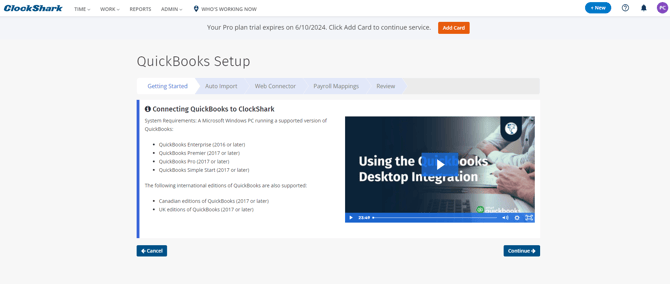
To set up the integration:
- Go to Admin > Integrations > QuickBooks.
- Click Connect to QuickBooks Desktop.
- Click the QuickBooks Desktop Setup link at the bottom.
- Follow the setup wizard on screen.
- Download and install the web connector. Learn more in How to Run the Web Connector.
- If you choose Auto-Import, you will receive an update from the QuickBooks Web Connector every 60 minutes that will import your new Customers/Jobs from QuickBooks as Jobs in ClockShark. It will also import any new active employees in QuickBooks and create them as employees in ClockShark.
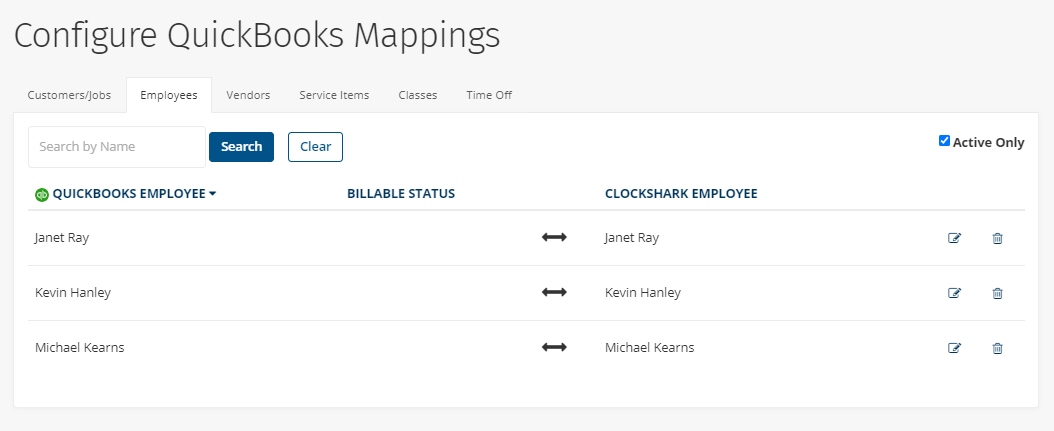
Learn more about mapping employees in How to Map Data from ClockShark to QuickBooks Desktop and How to Use QuickBooks Automatic Importing.