
Apple devices have a different method for locking an app’s screen. Learn more in How to Lock ClockShark Kiosk on Your Apple Device.
To set up screen pinning on your device:
- Open the Settings app on your device and go to Security. This may also be called Lock Screen and Security.
- On Samsung devices, you may need to tap Other Security Settings.
- Tap Screen Pinning or Pin Windows.
- Toggle the slider ON.
- Set up a Lock Screen Passcode.
This is the same as the general unlock code for the device. Make sure only authorised employees know this passcode.
Learn more in How to Pin & Unpin Screens on Android Help.
Lock your device to ClockShark Kiosk
-
Open the ClockShark mobile app.
-
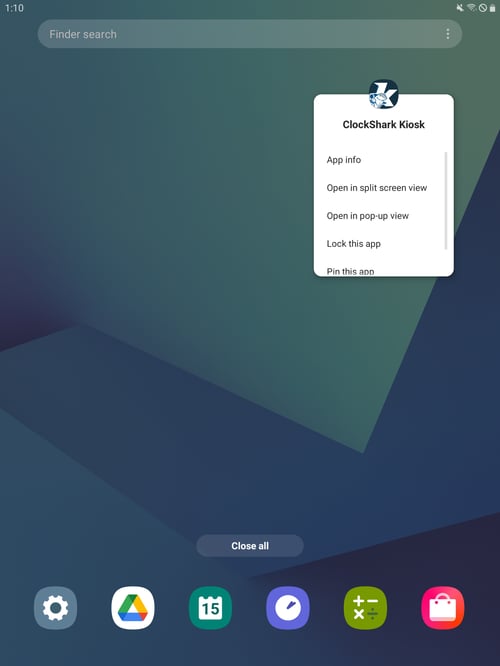
Tap the Recent Apps button in the bottom left corner of the device.
-
Tap the ClockShark Kiosk icon located above the app.
-
Tap Pin this app, and confirm.
Now that Screen Pinning is enabled for ClockShark Kiosk, anyone attempting to leave the app by pressing the Home button will be asked to enter the Screen Pinning passcode. Without the passcode, the device will always open to the ClockShark Kiosk app, even if the device falls asleep.
Return the device to normal mode
To return the device to normal mode:
- Tap and hold both the Recent Apps and Back button simultaneously, until the device prompts you for your passcode.
- Enter your passcode.