
If you use the Simpro Premium integration and work with contractors in Simpro, you can now import and sync those contractors into ClockShark as employees. This is an opt-in feature that you enable from the Simpro integration settings page. Once enabled, contractors sync automatically alongside your existing Simpro employees.
For help setting up the Simpro integration, see Set Up the Simpro Premium Integration. For exporting time back to Simpro, see Exporting Time from ClockShark to Simpro Premium.
Note: Contractors cannot be imported during the initial Simpro integration setup. You must first connect your Simpro account, then enable contractor importing from the settings page as described below.
Before You Start
Before enabling contractor import, make sure your Simpro contractors meet these requirements:
- Each contractor must have a unique email address in Simpro Premium. Contractors without an email will not be imported into ClockShark.
- Contractor names come from the Contact Name field in Simpro. If a contractor does not have a personal Contact Name, ClockShark will use the Contractor Company Name instead. For example, a contractor listed under "Smith Electrical Services" with no contact name will appear as "Smith Electrical Services" in ClockShark.
Enabling Contractor Import
- Go to Admin > Integrations and open your Simpro integration settings page.
- In the Settings section, select the "Import and sync contractors as employees." checkbox.
- Click Save Settings.
- A success message will confirm your settings have been updated.
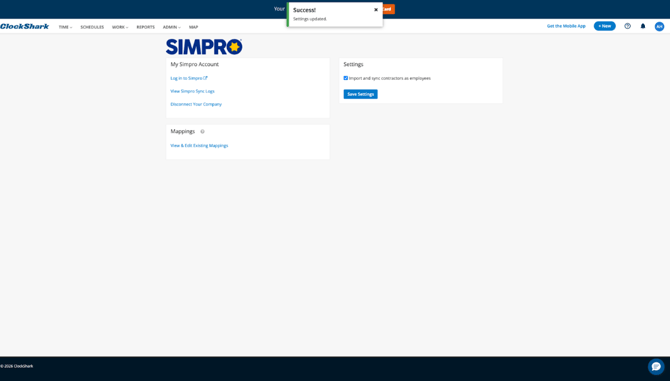
Once enabled, a background sync will run and import your Simpro contractors into ClockShark as inactive employees. This is the same behavior as when Simpro employees are first imported. You can then activate and map these contractors from the View & Edit Existing Mappings page, just like you would with any Simpro employee.
After the initial import, new contractors added in Simpro will automatically sync to ClockShark on future sync cycles. Contractor time tracked in ClockShark can be exported back to Simpro through the standard time export process.
Note: GPS and location tracking are automatically turned off for imported contractors. If your company requires location tracking for contractors, you can update their permissions individually from their employee settings after import.
Disabling Contractor Import
If you need to stop syncing contractors:
- On the Simpro integration settings page, deselect the "Import and sync contractors as employees" checkbox.
- Click Save Settings.
- A confirmation dialog will appear with the title "Stop Syncing Contractors" warning that future syncs will stop and current contractors in ClockShark will be deactivated.
- Click Stop Syncing to confirm, or click Cancel to keep the setting enabled.
After confirming:
- Existing contractors that were imported from Simpro will be deactivated in ClockShark.
- Future Simpro syncs will no longer import or update contractors.
- Your existing employee sync is not affected.
Note: If you re-enable contractor syncing later, the system will reconnect previously imported contractors to their Simpro counterparts rather than creating duplicates.