
Administrators can identify when employees have a difference of 20 minutes or more between their phone’s time and the actual current time. This is typically a strong indicator of time manipulation and can help prevent time-theft. Time Discrepancies are checked when the employee performs a clocked event. Set up Time Discrepancy alerts and then view alerts on the timesheets page, in notifications, or through reports.
Enable time discrepancy alerts
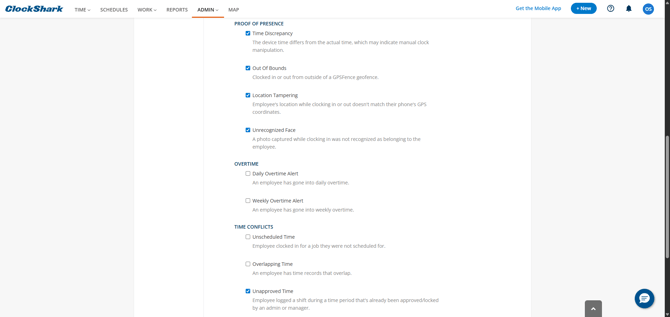
To enable missing break alerts:
- Go to Admin > Alerts and Reminders.
- Under Proof of Presence, select Time Discrepancy.
- Click Save.
Learn about other alerts in Alerts, Notifications and Reminders.
View alerts
Note: ClockShark processes alerts every 30 minutes, so there may be up to a 30 minute delay before the alert appears. These alerts are not triggered in Offline Mode.
On the Timesheets page, a red triangle icon appears next to any shift with a Time Discrepancy alert. Hover over the icon to see more details, including how far off it was, and the times in the company's configured timezone.
You can receive Time Discrepancy alerts as they are triggered via the bell icon or email address set up in your account. Learn more in Alerts, Notifications and Reminders.
You can also report on time discrepancy alerts in the Timesheet Alerts report. Learn more in Time Tracking Reports.