
With the Location Sharing Off Timesheet Alert, administrators can identify shifts where an employee disabled location services on their mobile device, or revoked location permission for the ClockShark app while still clocked in.
There are three ways to view this alert:
- From the Timesheets page
- By email notification
- From the Timesheet Alerts report.
When the alert is triggered
The Location Sharing Off alert triggers when an employee disables location services during a shift, which explains gaps in their GPS Tracking data.
For the alert to work, the employee needs to have these two employee permissions enabled by an admin in their ClockShark employee settings:
- Go to ADMIN > Employees.
- Click the employee’s name.
- Click GPS & Time Clock.
- Select:
- Enable GPS Tracking (GPSTrak)
- Require GPS to clock in from the mobile app
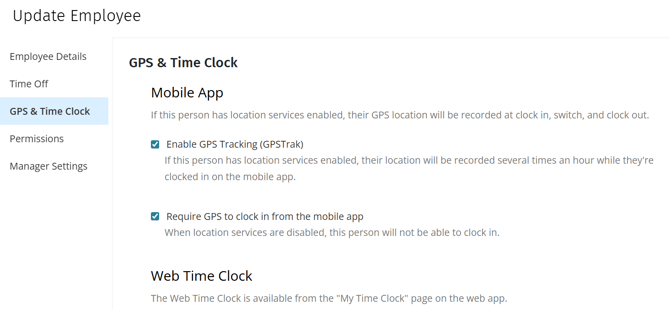
- Click Update Employee.
The employee also needs to grant the ClockShark app location access on their device, set it to While Using the App option. The app keeps tracking while the employee is clocked in, so Allow Always is not required.
Once all of the above is in place, the alert is triggered if, while clocked in, the employee:
- Turns off the device-wide Location Services setting on their phone, or
- Changes the ClockShark app's location permission to a disabled state (for example, selecting the Never option on iOS)
Once a shift is flagged, the exception remains on that shift for the rest of the day, even if the employee turns location services back on before clocking out.
Enable the Location Sharing Off alert
To enable the Location Sharing Off alert:
- Go to Admin > Alerts and Reminders.
- On the Timesheet Alerts page, select Location Sharing Off.
- Click Save.
Note: Location Sharing Off is enabled by default for new ClockShark companies. Existing companies need to enable it manually.
Where you'll see the alert
Once the alert is enabled and a qualifying shift occurs, you can view it in three places:
- A red Location Sharing Off shift exception on the Timesheets page and the Timesheet Details page.
- An email notification (configurable on the Customize Timesheet Email Alerts screen under your account settings).
- The Timesheet Alerts report under Reports > Time Tracking > Timesheet Alerts, where you can filter by Location Sharing Off.
Things to know
- This alert is only triggered by the new ClockShark mobile app. Employees using the legacy ClockShark mobile app will not trigger this alert, even if location services are disabled on their device.
- Ensure your team is on the latest version of the new ClockShark mobile app.
- The detection relies on the mobile app being able to check its permissions, so a flagged shift may not appear on the Timesheets page until the next time the app syncs.