
Each job and customer has a comment thread, where you can comment about the status of a job, materials needed for the rest of the job, progress pictures/photos that need to be uploaded, and anything else worth saying. Comments are available for admins and employees on both the website and the mobile app. The comments feature facilitates easier communication and ensures project details are updated in real-time.
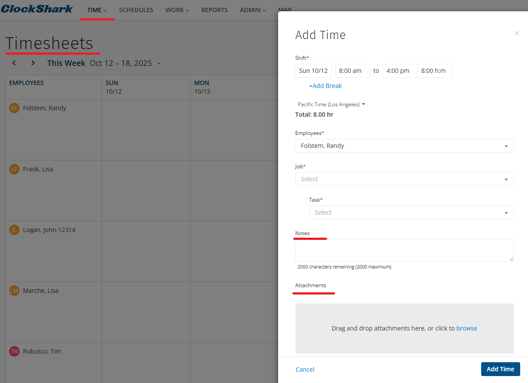
Note: You can also leave timesheet notes and attachments through TIME > TIMESHEET > View, and click + icon in the specific date column. Unlike the comments feature, these timesheet notes will not be visible on the job comments threads on the corresponding job and customer, and will only be visible on the timesheet entry for that selected date and employee.
Comments
You can leave comments on a job or a customer.
To leave comments on jobs:
- Go to WORK > Jobs.
- Click the specific job line.
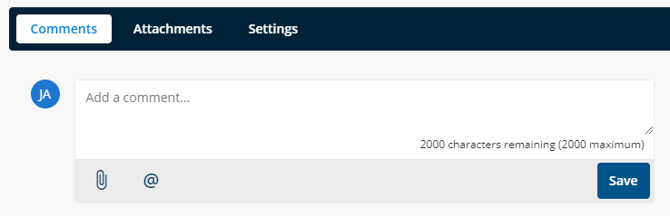
- Click Comments to enter the comment details.
How to leave comments on customers:
- Go to WORK > Customers.
- Click the specific customer line.
- Click Comments to enter the comment details.
Any comments left on the job or customer listed from newest to oldest.
Attachments
Attachments enable both Web Portal and Mobile users to upload photos and various document formats, including PNG, JPG, and PDF.
The Comments tab and Attachments tab are connected. Any attachments that are added from the comments tab will automatically be seen in the attachments tab. Any change that happens in one affects the other. For example, any file removed from the attachments tab will also be removed from the comments.
Both admins and employees can bulk download these attachments by:
- Go to the job/customer Attachments tab
- Select the attachments.
- Click Download.
This will download all selected attachments into a ZIP file.
Mentions
When you mention a user, they immediately receive a notification, which prompts delivery of critical information. To create a comment and mention a user, you can either click the @ button or type @ manually which will bring up a list of users.
Learn more in Access Controls.
Learn more in ClockShark Pro Accounts.
Notifications
When a user is mentioned in a comment, they will receive a notification on the web portal and mobile app.
Click the bell icon in the top right corner to view notifications on the web portal. When you receive a new notification, the bell will pop up an orange dot. It removes after you click the bell icon to read the messages. Clicking on a notification will direct you to the comment thread and also highlight the exact comment referenced in the notification.
Following
To use this follow feature to control which notifications you receive, you can get notified whenever new comments or attachments are added on the specific job/customer you followed. It is a great way to manage your notifications and stay in the loop.
To follow a job/customer:
- Click into a job/customer.
- Click Actions in the top right corner.
- Click Follow.
Jobs and Customers can be unfollowed simply by clicking Actions > Unfollow.
Email Notifications
In addition to in-app notifications, users can receive email notifications for mentions and follows. These email settings are customizable via the web portal.
To set up your email preferences, click your initials in the top right corner > My account > Emails, to update the options there. By default setting, you will receive a summary email for new comments on jobs and customers you follow. You will also receive an email for each comment you are mentioned in.