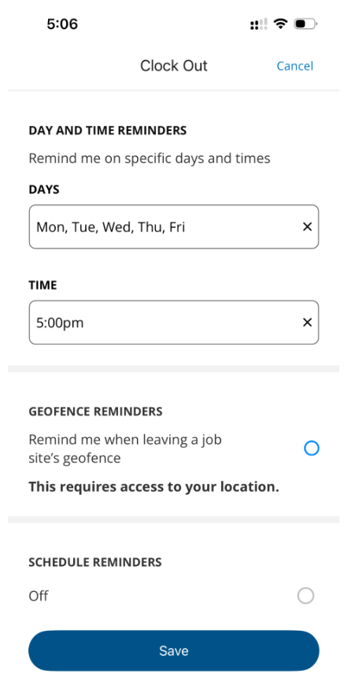
ClockShark can send employees push notification reminders to help them clock in and out on time. There are three types of reminders available:
- Time-based reminders: sent at specific times of day or after a set duration (e.g., 8:00 AM every weekday, or 4 hours after clocking in to remind them to take a break).
- Schedule-based reminders: sent relative to an employee's scheduled shift (e.g., 15 minutes before a shift starts).
- Geofence clock-In reminders: sent when an employee enters the geofence of the job they're currently not clocked into, prompting them to clock in or switch jobs.
- Geofence clock-out reminders: sent when an employee leaves the geofence of the job they're currently clocked into, prompting them to clock out or switch jobs.
To set up reminders:
- An admin configures company defaults on the web portal.
- Each employee enables notifications on their mobile device.
Important notes about reminder notifications
- Notifications are scheduled once every hour, not instantly in real time.
This means if you create or update a reminder only a few minutes before it is supposed to be sent, the system will not schedule it until the next hourly cycle. If the reminder is set to repeat for the next day, the notification will be sent accordingly.
Example:
If a reminder is created at 10:15 AM for 10:50 AM, the notification will not be sent at 10:50AM because the next scheduling cycle does not run until 11:00 AM.
-
If the employee has already performed the action related to the reminder, the notification will not be sent.
Example:
An employee will not receive a “Start Break” reminder if they are already on break.
Set up company defaults reminders settings on web portal
Company defaults are set by an administrator and apply across your company. They give employees a pre-filled starting point when they enable reminders on their own devices — employees can still adjust the values to suit their own schedule.
To set up defaults:
- Go to Admin > Alerts and Reminders.
- Click Reminders on the left.
Time-based reminder defaults
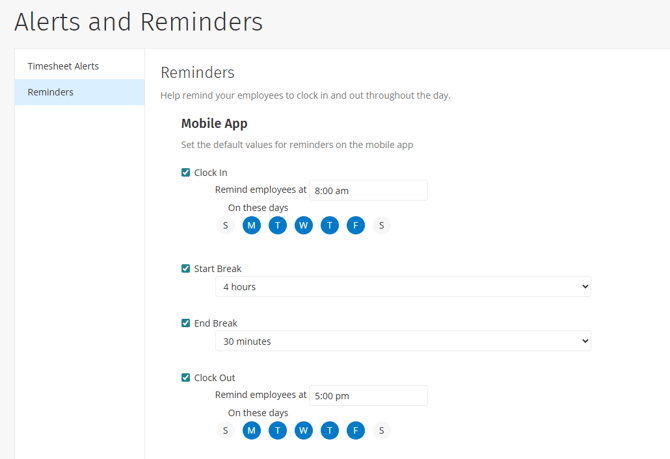
Under Mobile App, select the defaults you'd like your employees to use. You can enable any combination of the four reminder types:
- Clock In: Enter a time next to Remind employees at and select the days of the week to send the reminder (e.g., 8:00 AM, Monday–Friday).
- Clock Out: Enter a time and select the days of the week (e.g., 5:00 PM, Monday–Friday).
- Start Break: Enter the number of hours and minutes after clock-in to send the reminder.
- End Break: Enter the number of hours and minutes after the start break time to send the reminder.
Schedule-based reminder defaults
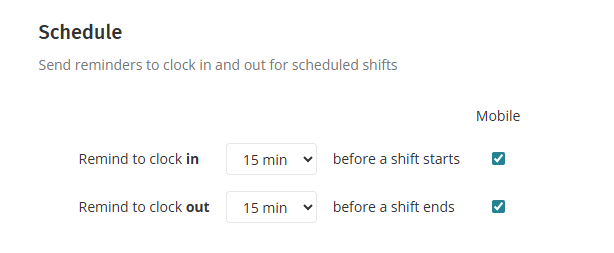
Under Schedule, select the defaults you'd like your employees to use. Unlike time-based reminders, these are sent relative to each employee's scheduled shift, so the reminder timing adjusts automatically based on when they're scheduled to work.
For example, you can set a reminder to send 15 minutes before an employee is scheduled to start a shift.
Click Save on top right after you complete the settings.
Employee settings on individual mobile device
Company defaults don't automatically turn reminders on for employees. Each employee has to enable notifications manually themselves on their own mobile device.
-
Turn on notifications for the app
-
When an employee first installs the ClockShark app, they'll be prompted to allow notifications. If they declined at that first time or want to double-check, they can turn notifications on from their device's app settings.
On iOS, it’s under Settings > Notifications; on Android systems, it’s under Settings > Notifications > App Settings. Learn more in Change notification settings on iPhone and Control notifications on Android.
-
- Turn on individual reminders
-
In the ClockShark mobile app:
1. Tap the profile icon in the top right.
2. Tap My Account.
3. Tap Time Clock Reminders.
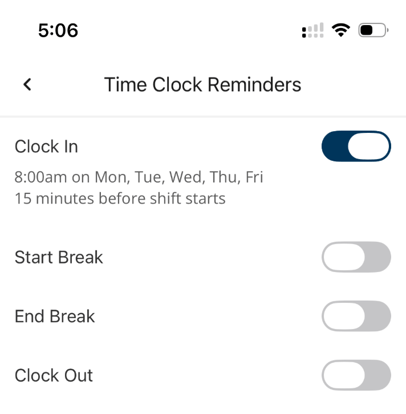
4. Employees will see the four reminder types (Clock In, Start Break, End Break, Clock Out).
-
When an employee toggles a reminder on, they'll be taken to the setting screen for that specific reminder. If company defaults exist, those values will be pre-filled. If no defaults exist, the employee can configure the settings manually.
Note: Employees can edit the pre-filled values on their mobile device. After you update the Time Clock Reminders settings in the mobile app, tap Save to activate the updated settings.