
ClockShark Time Off is only available on the Pro Plan
You can manage your employees’ time off through ClockShark. Create custom PTO plans, unpaid plans, sick leave plans, and assign individual employees to those plans. Employees can check how much time they have accrued, request time off, or view existing requests.
After these setup steps have been completed, you can learn more about requesting time off and approving time off in How to Request Time Off and How to Approve or Decline Requested Time Off.
Enable the Time Off feature
Time off policies require a pay period. Go to Admin > Company > Payroll and Overtime and make sure a Pay Period has been selected.
To enable time off:
- Go to Admin > Company Settings.
- Click Time Off.
- Select the Enable Time Off check box.
- Click Save.
Now administrators will be able to create time off policies.
Set up a time off policy
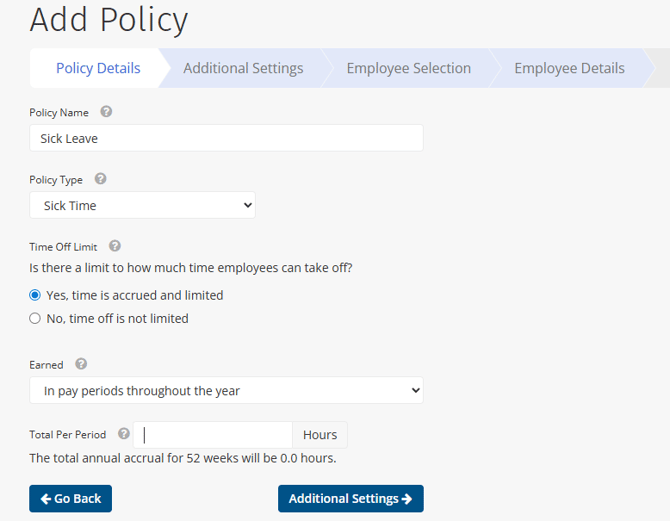
To set up a time off policy:
- Go to Time > Policies.
- Click Add Policy.
- Under Policy Details, add a Policy Name.
- Select a Policy Type.
- Paid Time Off (PTO) and Sick Time policies will include hours taken in the weekly total on Timesheets.
- Unpaid Time hours will not be included in the weekly totals on Timesheets and will display as 0.
- If this type of time off is limited, select Yes, time is accrued and limited. If employees can take any amount of time off at any time, select No, time off is not limited.
- If Yes, select how the time off is Earned.
- Based on how the time off is earned, enter the number of Hours earned. To help your calculations, the total annual accrual will be displayed below.
- Click Additional Settings.
- Select if there is a Waiting Period before employees can use time off. Enter the number of Days employees must wait from their hire date before they can request time off.
- If time off is limited, select if there are Limited Carryover Hours.
- If you select Yes, there’s a limit, enter the Carryover Limit. Any hours beyond that max limit that the employee does not use before the end of the year will no longer be available on January 1st.
- If time off is limited, enter the Maximum Balance employees can earn.
- Click Save and go to Employee Section.In the Employee Section, you can choose to add employees to this policy now, or you can add them later.
- Select from the following options:
- Choose All Employees
- Choose All Unassigned Employees
- Choose Individual Employee(s) and then use the drop-down list below to select individuals. Employees can be assigned to multiple time off policies.
- Click Employee Details.
- Enter the Hire Date for each employee. If the employee already has an existing Balance, enter or adjust it.
- Click Save and Return to Policy Details.
All policies that have been created can be viewed in the Policies list.
If you need to edit policy details, all employees must be removed from the policy first.
When is time off accrued?
How time off is earned depends on the selection you make when creating the time off policy. See the table below for more detail.
|
In pay periods throughout the year |
Accruals appear at the start of the next pay period. For example, if your pay period is 7/3 to 7/9 the accrued PTO will appear in the employee's PTO bank on 7/10. |
|
In one block on the first of the year |
The total hours per year that you enter will appear in the employee's PTO bank on January 1st. |
|
In one block on the employee anniversary |
The total hours per year that you enter will appear in the employee's PTO bank on their hire date work anniversary. You need to manually enter the anniversary date when you add them to the policy. |
|
Based on hours worked per pay period |
The accruals will appear in the employee's PTO bank after a buffer week in case any timesheet edits need to take place. For example, if the pay period is from 6/26 to 7/2, the accrued PTO will appear in the employee's PTO bank on 7/10. |
Delete a time off policy
To delete a time off policy:
- Go to Time > Policies.
- Open the policy you want to delete.
- Click the trash can icon.
- Click Delete Policy in the pop-up window.
Alternatively, you can delete policies in bulk by selecting the check boxes for each policy and clicking Delete in the blue bar at the top.