
ClockShark Kiosk needs to be set up on a device by an administrator. Learn more in How to Use ClockShark Kiosk as an Administrator.
Lock in and record jobs
-
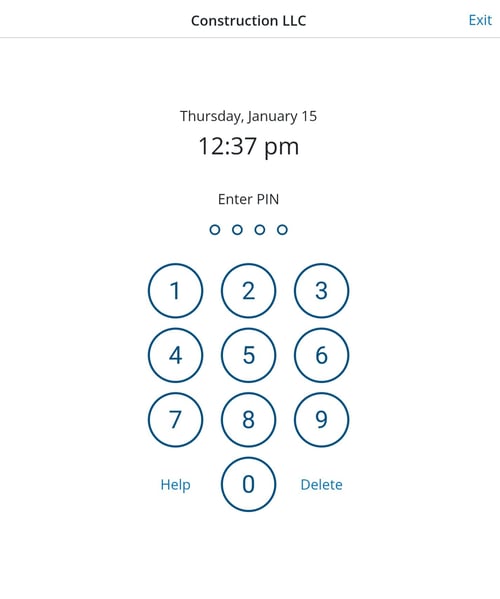
In ClockShark Kiosk, enter your unique 4-digit PIN.
-
Tap Clock In.
-
Choose the job and task.
-
Tap Complete Clock In.
To clock out of the job, enter your PIN again and click Clock Out.
To switch to record a different job:
- Enter your PIN
- Tap Switch.
- Select another job and task as required.
- Tap Complete Switch.
Note:
- Job time tracking only applies to the latest job you switched to. For example, if you switch to a new job, you will only be tracking time to the new job and will not track any additional time to the previous job.
-
If you have facial recognition enabled, the Kiosk Clock will automatically take a picture when you clock in. Learn more in How to Set Up Facial Recognition and Photo Capture for ClockShark Kiosk.