
You can choose to have lunch breaks automatically inserted into employee timesheets by turning on Automatic Lunch Deduction. This is an alternative to employees clocking lunch breaks manually through the app.
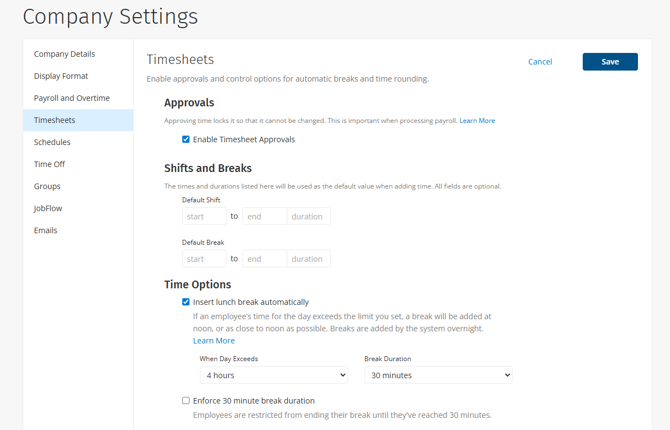
- Go to Admin > Company Settings > Timesheets.
- Select the Insert lunch break automatically check box.
- Under When Day Exceeds, select how long an employee can work without a lunch break. If an employee’s work time for the day exceeds this limit, a lunch break will automatically be scheduled at noon or as close to noon as possible.
- Under Break Duration, select how long the lunch break lasts.
- Click Save.
Lunch breaks are automatically inserted into employees’ timesheets at midnight following the worked shift. If an employee clocks out at 4pm on Monday, their lunch break will not be added until 12am Tuesday.
Note:
- This feature will add a break to any shift that has been manually added by an employee or admin.
- It is not recommended to have employees manually clock out for lunch if you have this setting enabled. If an employee manually clocks out for a break for 29 minutes, they will still have an additional 30 minute break automatically inserted.
- If a timesheet is approved before the automatic break insert occurs, the shift will not have the break inserted.